Canva Pro Review 2026: Is It Worth $15/Month? (Honest Deep Dive)
Honest Canva Pro review 2026 — Magic Studio AI, pricing, pros & cons, real tests. Find out if Canva Pro is worth it for bloggers, creators & businesses.
⚠️ Affiliate Disclosure: This post contains affiliate links. If you sign up for Canva Pro through my link, I may earn a small commission at no extra cost to you. All opinions are based on real hands-on testing. I only recommend tools I genuinely use and believe in.
Introduction: The Design Tool That Changed Everything
What if you could design a professional logo, create a YouTube thumbnail, build a pitch deck, remove an image background, generate AI images, schedule social media posts, and produce marketing materials — all inside one tool — without being a designer?
That is exactly what Canva Pro does in 2026.
With over 260 million monthly active users across 190 countries and more than 30 billion designs created, Canva has become the world’s most popular design platform — and for very good reason. It has democratized graphic design in a way that no other tool has managed before.
But the free version, while genuinely impressive, has real limitations. The question most creators, bloggers, and small business owners ask is: Is Canva Pro worth paying for?
In this detailed review, I’ve tested every major feature of Canva Pro — the Magic Studio AI suite, Brand Kit, Background Remover, Magic Resize, Content Planner, and more — to give you the most complete answer available in 2026.
The short answer: Yes — for anyone who creates content more than twice a week, Canva Pro pays for itself almost immediately. But let me show you exactly why.
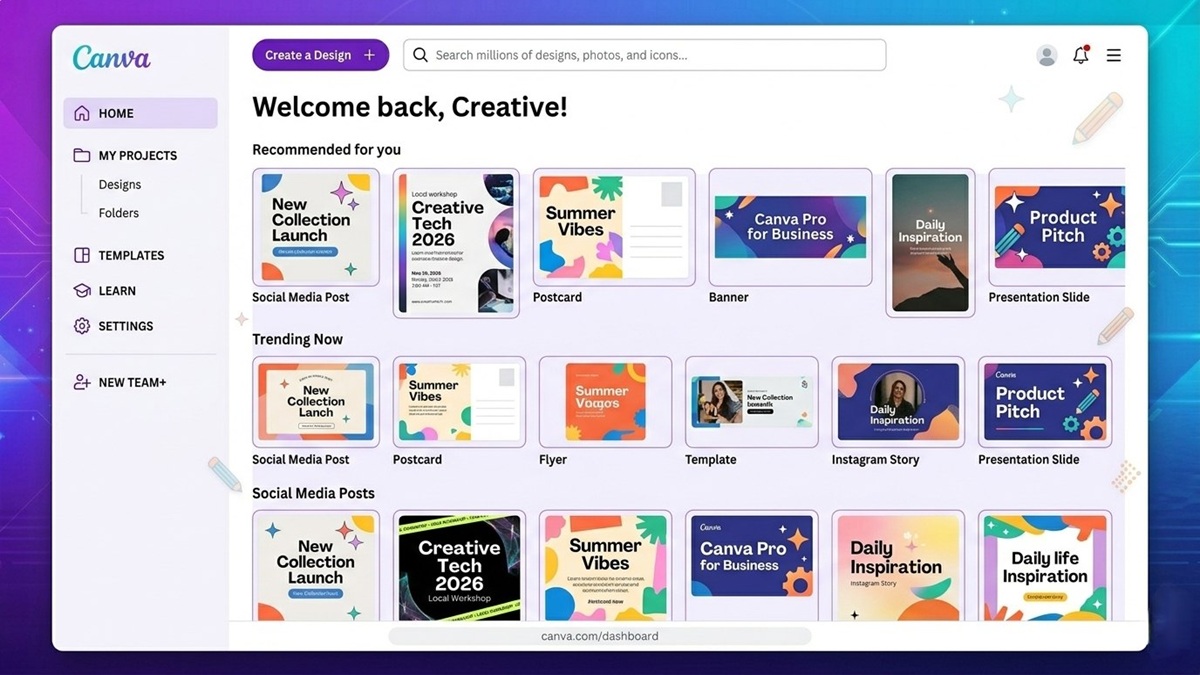 Canva Pro’s redesigned Visual Suite 2.0 dashboard — everything a creator needs in one unified workspace.
What Is Canva Pro? A Quick Overview
Canva is a cloud-based graphic design platform that lets anyone — regardless of design experience — create professional visuals using a drag-and-drop interface and thousands of pre-built templates.
Launched in 2013 by Australian entrepreneur Melanie Perkins, Canva started as a simple tool for making presentations and social media posts. In 2026, it has evolved into a full creative operating system — covering graphic design, video editing, AI image generation, document creation, website building, and social media scheduling.
Canva Pro is the premium tier designed for individual creators, freelancers, and small business owners who need the full power of the platform. It sits between the free plan and Canva for Teams, and unlocks features that genuinely transform how fast and how professionally you can create content.
Who Is Canva Pro Best For?
Canva Pro is specifically built for these types of users:
- 🎉 Bloggers and Affiliate Marketers — Create blog featured images, Pinterest pins, Twitter cards, and thumbnail graphics quickly and consistently
- 🎉 Social Media Managers — Design and schedule content for 9+ platforms from a single dashboard without switching tools
- 🎉 YouTubers and Content Creators — Produce thumbnails, channel art, end screens, and video overlays in minutes rather than hours
- 🎉 Freelancers and Designers — Deliver professional work faster using premium templates and brand kits without Adobe’s steep learning curve
- 🎉 Small Business Owners — Create logos, business cards, flyers, brochures, and marketing materials without hiring a designer
- 🎉 Coaches and Course Creators — Build presentation decks, digital products, workbooks, and lead magnets with zero design experience
Canva Pro is probably NOT for you if:
- ❌ You’re a professional graphic designer needing precise vector tools and CMYK color management for print work
- ❌ You work entirely offline without internet access
- ❌ You need advanced 3D design, complex animation, or multi-layer compositing
Key Features That Make Canva Pro Worth It
🤖 Magic Studio — The AI Suite That Changes Everything
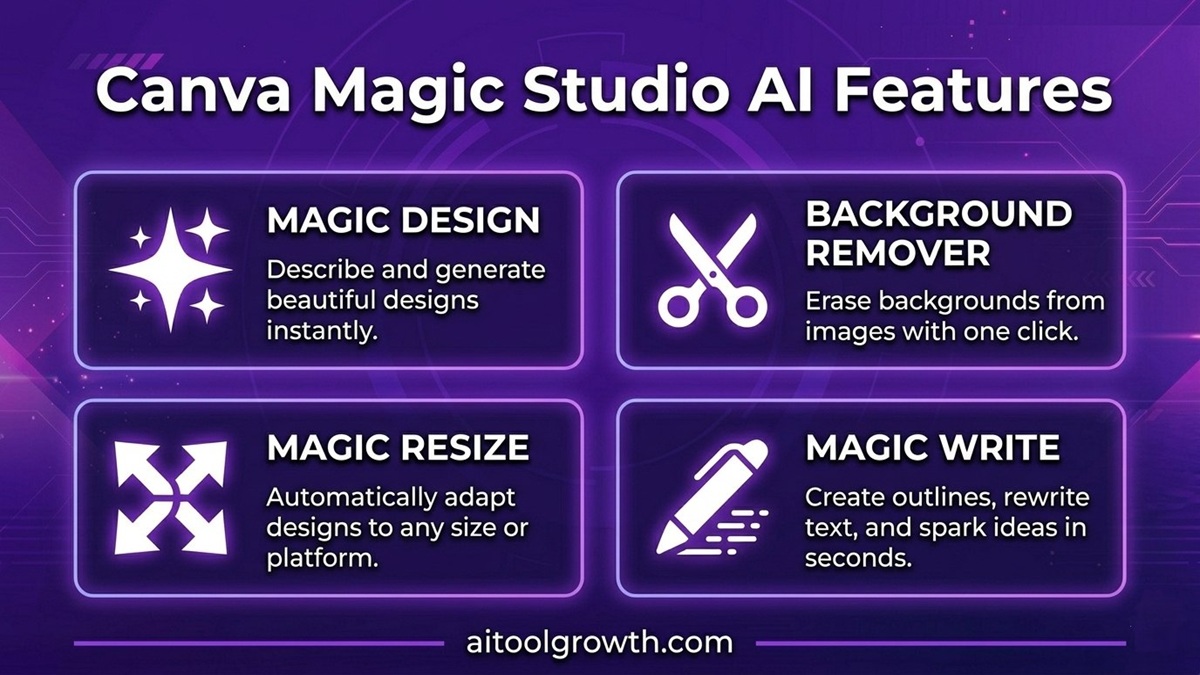 Canva Magic Studio brings powerful AI features directly into your design workspace.
Magic Studio is Canva’s suite of AI-powered tools, and in 2026, it has become genuinely transformative. Canva Pro gives you full access to the entire Magic Studio suite — the free plan only provides limited credits.
Here’s what each tool does and why it matters:
✨ Magic Design
Describe what you want in plain language and Canva generates a complete, professionally designed template in seconds.
In my testing, I typed: “Instagram carousel about productivity tips for remote workers, professional blue color scheme” — and received 8 polished layout options in under 10 seconds. The designs were genuinely professional and required only minor text adjustments, saving at least 30 minutes of manual design work. This is the feature that makes Canva Pro feel like having a junior designer on call at all times.
🖼️ Magic Media — AI Image & Video Generator
Type a prompt, get a high-quality AI-generated image or short video clip — directly inside the Canva editor, without switching to Midjourney or DALL-E.
The output quality is excellent for social media content, blog featured images, and marketing materials. For ultra-realistic or highly technical images, you’d still want Midjourney — but for 90% of everyday creative needs, Magic Media produces results that genuinely impress.
✂️ Background Remover — One Click, Photoshop-Quality Results
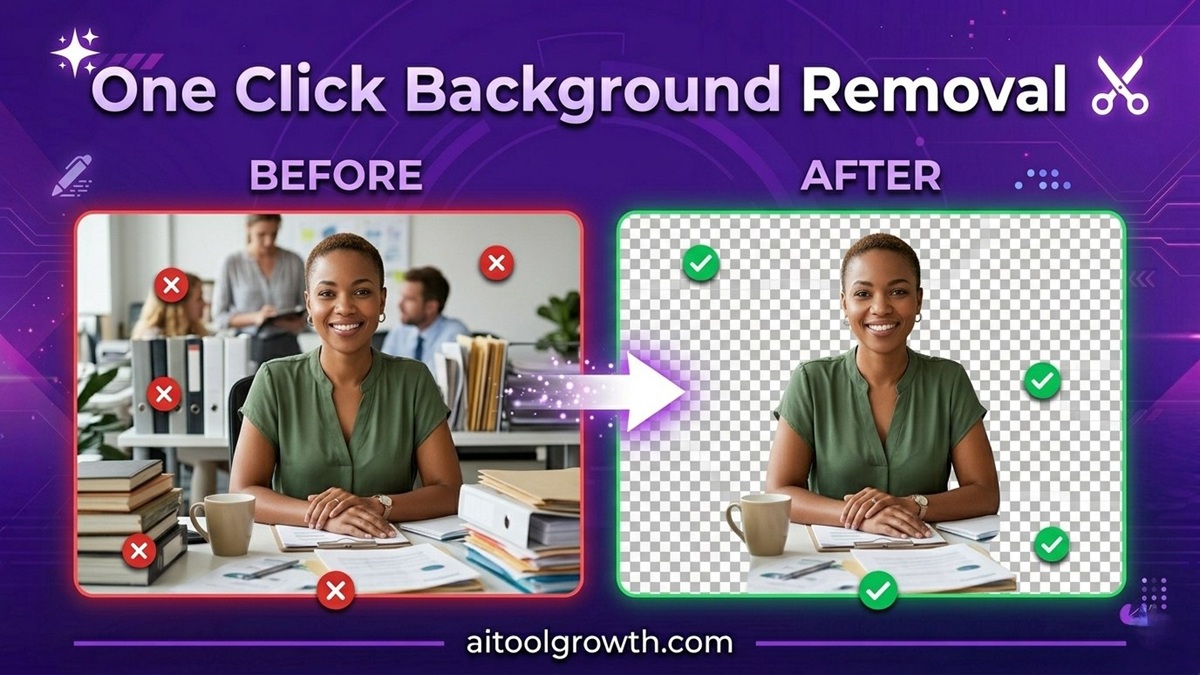 Canva Pro’s background remover cuts out complex objects and hair with just one click.
This is the single feature that most Canva Pro users mention first when asked why they upgraded. Upload any photo — a product shot, a headshot, a logo scan — and the background is removed in one click with AI precision.
In my testing, it produced clean cutouts on over 90% of images without any manual refinement, including complex edges like hair, transparent objects, and detailed outlines. A dedicated tool like Remove.bg charges $0.20 per image. Canva Pro gives you unlimited background removals as part of the subscription. For anyone doing product photography, blog imagery, or social media content, this alone covers the subscription cost within a few weeks.
🔄 Magic Resize — Design Once, Publish Everywhere
This feature alone saves social media creators hours every single week. Create one design — say, a square Instagram post — then click Magic Resize. Canva instantly generates correctly sized versions for:
- Facebook cover (851×315)
- Pinterest pin (1000×1500)
- LinkedIn banner (1584×396)
- YouTube thumbnail (1280×720)
- Twitter/X header (1500×500)
- Instagram Story (1080×1920)
What used to take 30–60 minutes of manual resizing per design now takes under 30 seconds. For anyone posting on multiple platforms, this is genuinely transformative.
✍️ Magic Write — AI Copywriting Inside Canva
Magic Write generates captions, headlines, social media copy, email subject lines, and blog outlines — directly inside the Canva editor, without switching to a separate AI writing tool. It’s not as powerful as a dedicated tool like Jasper AI or Grammarly, but for quick social captions, card text, and presentation bullets, it removes the blank-page problem instantly.
🪄 Magic Edit — Replace Objects with a Text Prompt
Select any element in a photo and describe what you want to replace it with. The AI edits the image in context — changing a plain white background to a beach setting, replacing a product color, or adding objects to a scene. Output quality is good for social-grade work. This is not Photoshop-level compositing, but for marketing visuals and social content, it removes the need for manual photo editing entirely.
🌐 Magic Switch — Translate and Reformat in One Click
Upload a design, select a target language, and Magic Switch translates all the text while preserving your layout. Supporting over 100 languages, this is invaluable for international bloggers and businesses reaching non-English audiences. It also reformats documents — turning a presentation into a document, a social post into a flyer — without manual rebuilding.
💡 Ready to save hours on your workflow? You can test all these premium features yourself by activating a 30-day Canva Pro free trial here.
🎨 Brand Kit — Your Visual Identity on Autopilot
Brand Kit is one of the most professionally valuable features in Canva Pro, and it’s one that free users simply cannot access. With Brand Kit, you upload your brand assets once:
- Logos — full version, icon version, monochrome version
- Brand Colors — primary, secondary, and accent palettes
- Brand Fonts — heading, body, and accent typography
From that point forward, every design you create automatically applies your brand identity with a single click. No more manually hunting for your hex code. No more downloading and re-uploading your logo. No more inconsistent colors across different designs.
For bloggers building a recognizable brand, Brand Kit ensures every post graphic, Pinterest pin, and email newsletter looks unmistakably “you.” For small businesses, it replaces a style guide document that most small teams never consistently follow anyway.
📦 Premium Asset Library — 100+ Million Files
The difference between the free and Pro asset libraries is enormous:
| Asset Type | Canva Free | Canva Pro |
|---|---|---|
| Templates | 250,000+ | 610,000+ |
| Stock Photos | 1 million | 100+ million |
| Stock Videos | Limited | Millions |
| Graphics & Elements | 1 million+ | 75+ million premium |
| Fonts | 1,000 | 3,000+ |
| Audio Tracks | Basic | Millions |
| Storage | 5 GB | 1 TB |
The premium stock photo library alone is worth noting: a single Shutterstock image costs $3–$15 per download. Canva Pro’s unlimited access to 100+ million premium photos makes it one of the most cost-effective stock media subscriptions available anywhere.
📅 Content Planner — Design and Schedule From One Place
Canva Pro includes a built-in social media scheduling tool that lets you publish directly to:
- Instagram (posts, Stories, Reals)
- Facebook (pages and groups)
- LinkedIn (personal and pages)
- Pinterest, Twitter/X, TikTok, Slack
You design your post in Canva, schedule it for a future time, and Canva publishes it automatically. This eliminates the export → download → upload → schedule workflow that wastes time with separate tools.
One honest caveat: The Content Planner lacks the depth of dedicated scheduling tools like Buffer or Hootsuite — no advanced analytics, no approval workflows, no best-time recommendations. For most solo creators and small businesses, Canva’s built-in scheduler is sufficient.
🖨️ Canva Print — Design and Print in One Place
Canva Pro users can order professionally printed materials directly through the platform, including business cards, flyers, posters, t-shirts, and promotional items. Canva handles the design → print → fulfillment → delivery pipeline entirely. Pricing is per-order and varies by product and quantity.
🌐 Canva Websites — Build and Publish a Website
Yes — Canva now includes a full website builder. Design a website using Canva’s drag-and-drop editor and publish it to a free Canva subdomain (yoursite.canva.site) at no extra cost, or connect a custom domain. Canva Websites are best for simple portfolio pages, link-in-bio pages, or quick product announcement landing pages.
🎬 Video Editor — Professional Video Without the Learning Curve
Canva Pro’s video editor has matured significantly in 2026. It supports multi-scene video creation with smooth transitions, licensed audio tracks, and an auto-subtitle generator that transcribes and captions your video automatically. For content creators producing short-form videos for Instagram Reels, TikTok, and YouTube Shorts, it removes the need for a separate video editing subscription.
Canva Free vs Canva Pro: The Complete Comparison
| Feature | Canva Free | Canva Pro |
|---|---|---|
| Templates | 250,000+ | 610,000+ premium |
| Stock Photos | 1 million | 100+ million |
| Storage | 5 GB | 1 TB |
| Brand Kit | ❌ | ✅ Unlimited |
| Background Remover | ❌ | ✅ Unlimited |
| Magic Resize | ❌ | ✅ One click |
| Magic Studio AI | Limited credits | ✅ Full access |
| Content Planner | ❌ | ✅ 9 platforms |
| Custom Fonts Upload | ❌ | ✅ |
| Transparent PNG Export | ❌ | ✅ |
| Folder Organization | Limited | ✅ Unlimited |
Real-World Testing: What I Actually Found
I used Canva Pro across 30 days of real content creation tasks. Here’s what I found in practice:
- Blog Thumbnail Creation: Before Canva Pro, it took 25–40 minutes per featured image. With Canva Pro, it took 4–8 minutes per image using Magic Design templates and one-click background removal.
- Social Media Content (5 platforms): Instead of manually resizing, Magic Resize generated all 5 sizes in 30 seconds, saving 45+ minutes per week.
- Background Remover Accuracy: Tested on 20 complex images (including hair and transparent objects). It delivered a clean result without refinement on 18 out of 20 images (90%).
Pricing: Is Canva Pro Worth $15 Per Month?
Canva Plans 2026
| Plan | Monthly Price | Annual Price | Best For | |—|—|—|—| | Free | $0 | $0 | Casual use, students, testing | | Pro | $15/mo | $120/year (~$10/mo) | Creators, bloggers, freelancers | | Teams | $10/user/mo | Min. $30/mo (3 users) | Agencies, small teams |
Choosing annual billing saves you approximately $60 per year (~33% discount). At $10/month on the annual plan, Canva Pro replaces standalone photoshop tools, background removers, buffer schedulers, and stock photo accounts simultaneously.
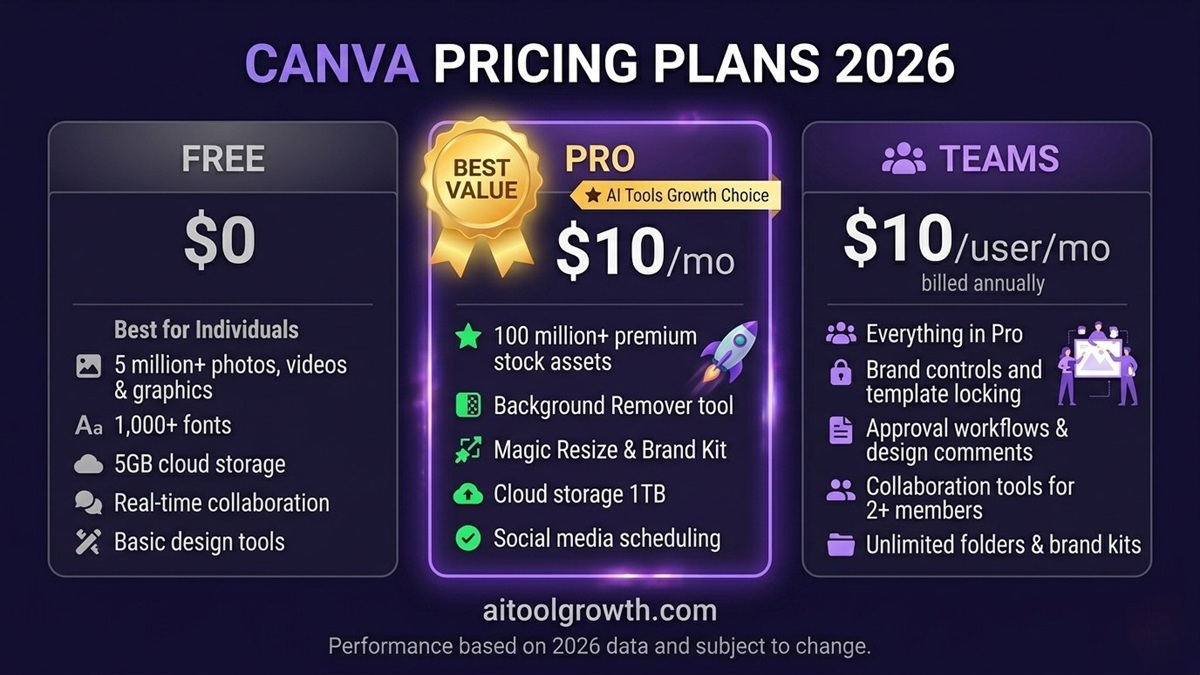 Canva Pro 2026 Pricing plans side-by-side — the annual plan offers the highest features and savings for creators.
⚠️ Hidden Costs to Know About
- One-time premium element purchases: Some individual elements in the editor still cost $1–$15 even on Pro if they are exclusive marketplace assets. Always check before using an element.
- Custom domain for Canva Websites: Requires purchasing a domain from a third-party registrar (~$15–$20/year) if you don’t want the free
.canva.siteextension.
🎁 Special Programs: Get Canva Pro FREE
Canva is genuinely generous with free access for eligible users:
- 🎓 Educators and K-12 Teachers: Canva for Education — most Pro features completely free.
- 🏫 Students: Free access through verified school programs.
- ❤️ Nonprofits: Canva for Nonprofits — full Teams-level access completely free for registered organizations.
Pros and Cons — The Full Honest Breakdown
✅ Pros
- Extraordinary value — replaces 3–5 separate paid tools at a fraction of the cost
- Magic Studio AI suite — genuinely useful AI tools baked directly into the editor
- Background Remover — one-click precision that rivals Photoshop; unlimited usage
- Magic Resize — design once, adapt for every platform in 30 seconds
- Brand Kit — complete brand consistency with zero effort after initial setup
- 100+ million premium assets — unlimited stock photos, videos, fonts, and graphics
- 1 TB storage — effectively unlimited for most creators (vs 5 GB free)
- Works smoothly in any browser — no heavy installation required
❌ Cons
- Some premium elements still cost extra within the subscription tier
- Everything looks a bit “Canva” if you use popular templates without heavy customization
- Not for professional print work — lacks CMYK color profiles and advanced vector tools
- Content Planner is basic — no advanced analytics or optimal timing recommendations
- Requires active internet connection — no offline mode available
Canva Pro vs Adobe Express: Which is Better in 2026?
| Feature | Canva Pro | Adobe Express |
|---|---|---|
| Ease of Use | ✅ Superior | Good |
| Template Quantity | ✅ 610,000+ | ~35,000 |
| AI Features | ✅ Full Magic Studio | Adobe Firefly integration |
| Photoshop Integration | ❌ | ✅ Superior |
| Brand Kit | ✅ Yes | ✅ Yes |
| Background Remover | ✅ Unlimited | ✅ Limited on free |
| Price (Annual) | $120/year | $99/year |
| User Rating (G2) | ✅ 4.7/5 | 4.5/5 |
Verdict: For most content creators, bloggers, and non-designers, Canva Pro is the better choice. Adobe Express is better only if you’re already deep in the Adobe ecosystem and need direct Photoshop/Illustrator integration.
How to Get the Most Value From Canva Pro
- Set Up Brand Kit First: Before designing anything, upload your logo and brand colors. This saves hours of manual work later.
- Start With Magic Design: Instead of starting from a blank canvas, describe your project to the AI, pick the closest layout template, and customize from there.
- Use Magic Resize After Every Design: Whenever you create a graphic, immediately resize it for your other major social platforms and batch your content scheduling.
- Batch Create Content: Use the Content Planner to design and schedule 2 weeks of social posts in one single Canva session to save massive time.
Final Verdict: Is Canva Pro Worth It in 2026?
Yes — emphatically, for anyone who creates content regularly.
At $10/month on the annual plan, Canva Pro is one of the highest-value software subscriptions available for creators, bloggers, small businesses, and freelancers. It replaces multiple separate paid tools under a single subscription at a fraction of the combined cost.
The Magic Studio AI suite in 2026 has elevated Canva from a simple design tool to a legitimate AI-powered creative platform. Magic Design, Background Remover, and Magic Resize alone justify the upgrade for any active creator.
💡 Pro Tip: Always choose the annual plan at $120/year over monthly billing — you save $60/year (~33%) and the price works out to just $10/month.
Frequently Asked Questions
Q: Is Canva Pro worth it for beginners? Absolutely. Canva Pro is arguably most valuable for beginners precisely because you don’t need any design experience. The template library and drag-and-drop interface mean you can produce professional-looking designs within minutes.
Q: What is the difference between Canva Free and Canva Pro? The five biggest differences are: (1) Brand Kit access, (2) Unlimited Background Remover, (3) One-click Magic Resize, (4) Premium asset access (100M+ photos/videos), and (5) Full Magic Studio AI suite access. Storage also jumps from 5 GB to 1 TB.
Q: Can I cancel Canva Pro anytime? Yes. Canva Pro subscriptions can be cancelled at any time through Account Settings. Your Pro access continues until the end of your current billing cycle, then your account reverts to the free plan without any penalties.
Q: Is Canva Pro good for making money as a freelancer? Yes — Canva Pro is a highly effective tool for design freelancers. You can create professional-quality social media graphics, presentation decks, and marketing materials in a fraction of the time, allowing you to handle more clients efficiently.
Q: How many designs can I create with Canva Pro? Unlimited. Canva Pro places no restriction on the number of designs you create. The 1 TB storage allocation can store approximately 250,000 high-resolution images.
Q: Does Canva Pro include a free domain for websites? No — publishing to a free Canva subdomain (yoursite.canva.site) is included with Pro at no extra cost, but connecting a custom domain requires purchasing it separately from a registrar.
Q: Can teams use Canva Pro or is there a separate plan? Canva Pro is a single-user plan. For teams of 3 or more people needing shared brand kits and collaborative features, Canva for Teams starts at $10/user/month.
Related Posts You’ll Find Helpful
- 📖 Grammarly vs QuillBot 2026 — Which AI Writing Tool Wins? →
- 📖 ElevenLabs Review 2026 — Best AI Voice Generator? →
- 📖 Hostinger Review 2026 — Best Budget Hosting? →
- 📖 Hostinger vs Bluehost 2026 — Which Is Better? →
| *Last Updated: May 2026 | Data sourced from Canva official documentation, StyleFactory Productions, SocialRails, ToolTester24, Peaklly, and Daljir.blog independent testing and user research.* |